
Find and manage duplicate files across local and network volumes.
Media production workflows generate duplicates constantly. Project imports copy source footage into new timelines. Archive passes duplicate deliverables across volumes. Multi-editor environments scatter identical assets across shares and local caches. On shared storage, every duplicate consumes capacity your team can't use for new work.
DupeCheck is designed for environments where duplicate management needs to span network volumes, reach outside the user sandbox, and handle large file counts efficiently — the scenarios that matter most in media production and that sandboxed App Store tools can't address.
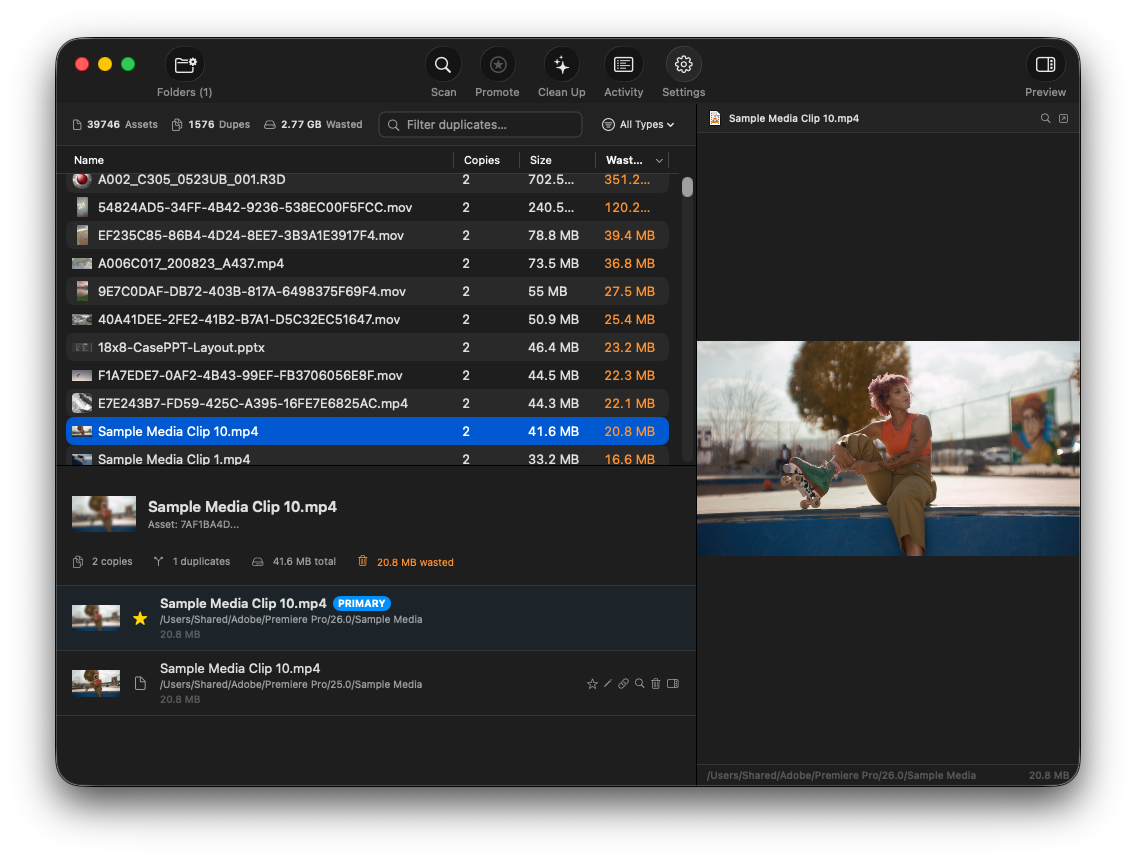
Main window showing duplicate groups sorted by wasted space, with file preview panel on the right.
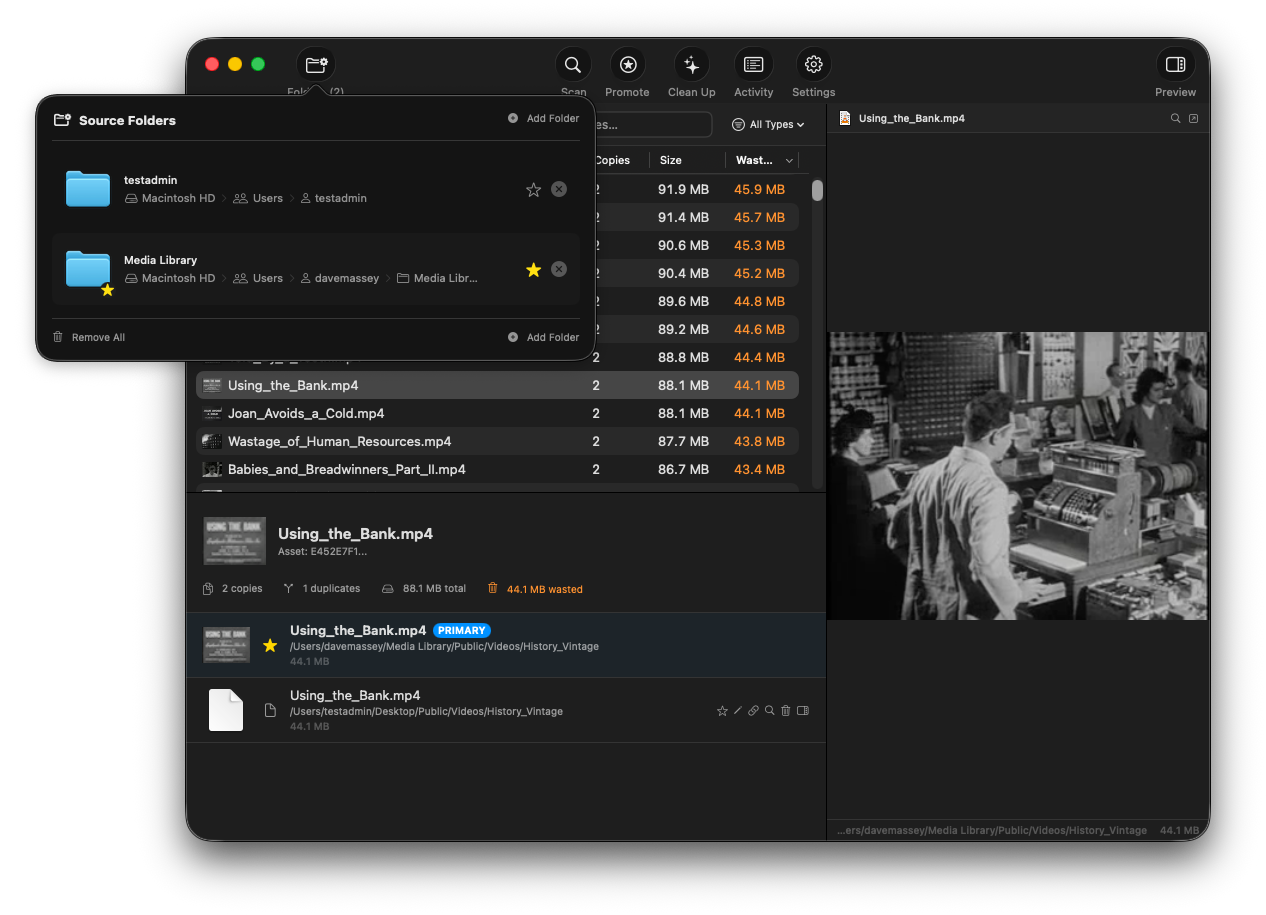
Source folder management — add local and network volumes.
Click the Folders button in the toolbar to add folders. You can add any combination of local directories and network-mounted volumes. DupeCheck scans all source folders and finds duplicates across them.
If one source folder is a child of another, the child is automatically excluded from the parent's scan to prevent double-counting. If you remove the child folder later, click Scan to pick up the files the parent was skipping.
DupeCheck scans only when you click Scan — not at launch, when a volume mounts, or when you add or remove a source folder. A source folder on a share that isn't mounted keeps its results and shows Not connected until the share mounts again.
Each duplicate set has at most one primary copy: the one DupeCheck keeps during cleanup. The other copies in the set are the duplicates that cleanup removes or replaces. Primary is a property of a file, not of a folder, and scans never change it.
The sidebar lists your source folders and every subfolder that contains duplicates, with a count of the duplicate files in it and below it. Select a folder to see only the duplicate sets with a file there; files in that folder are marked in the file list. Show or hide the sidebar with the Sidebar toolbar button or View → Hide Sidebar (⌃⌘S).
Right-click a file in the list and choose Go to Folder to jump to its folder in the sidebar. Right-click a folder in the sidebar to:
Each action asks for confirmation first. It covers every duplicate set with a copy in the folder or its subfolders, including source folders inside it. The type filter and search don't change what an action covers; they only change what the list shows.
Find whole folders that were copied, such as a project copied to a second share, and clean the copies in one step. Click Folders above the list to see groups of identical folders: folders with the same file names, the same layout, and the same content. Only the highest identical folder is listed; its identical subfolders aren't listed again.
Folders are compared using the files DupeCheck recorded in its last scan. Small, hidden and excluded files aren't part of the comparison; DupeCheck checks them when you clean.
The files in the kept folder become their sets' primary copies where needed. The files in the other copies are then cleaned with the cleanup mode selected in Settings:
.DS_Store files are always removed with their
folder.If a file in a folder you're cleaning no longer matches the kept folder, DupeCheck doesn't clean anything and asks you to scan again.
Scanning a large SMB share from a Mac means listing and reading every file over the network. The NAS helper is a small program that runs on the NAS itself: it lists and hashes the files there, so finding files on a large share takes minutes instead of hours, and hashing no longer reads files over the network. Cleanup still moves and deletes files over SMB.
sudo -s), cd into the share if
you can, and paste the command. It installs the helper as a service and starts itScans of source folders on that share then run through the helper. To go back to scanning over SMB, choose Disconnect; Uninstall… gives you a command to remove the helper from the NAS.
With SHA-256 or MD5 verification, background verification and the check before cleanup also run on the NAS. The helper has its own NAS helper hash workers and NAS helper enumeration workers settings (Settings → Performance, defaults 16 and 4); lower them if other people use the NAS while you scan.
DupeCheck uses a multi-phase approach to find duplicates efficiently without hashing every file on disk:
Duplicates are always compared with multi-sample hashing during the scan. The Hash Method setting chooses whether cleanup also checks each file against a full-file hash first:
Cryptographically strong verification. Hardware-accelerated on Apple Silicon for fast performance even on large files.
Alternative verification method. Faster on older hardware but less collision-resistant than SHA-256.
No full-file hash before cleanup. Fastest, but relies on the multi-sample hash from the scan. Cleanup still skips a file whose primary is missing or that changed since the scan.
With SHA-256 or MD5, Verify in background after scan computes full hashes for all duplicates at low priority after a scan and logs any false positives in the Activity log.
DupeCheck uses concurrent workers for both directory enumeration and file hashing. The default configuration (2 enumeration workers, 4 hash workers) balances speed with I/O pressure on the volume being scanned. Shares connected through the NAS helper use their own settings (16 hash workers, 4 enumeration workers by default).
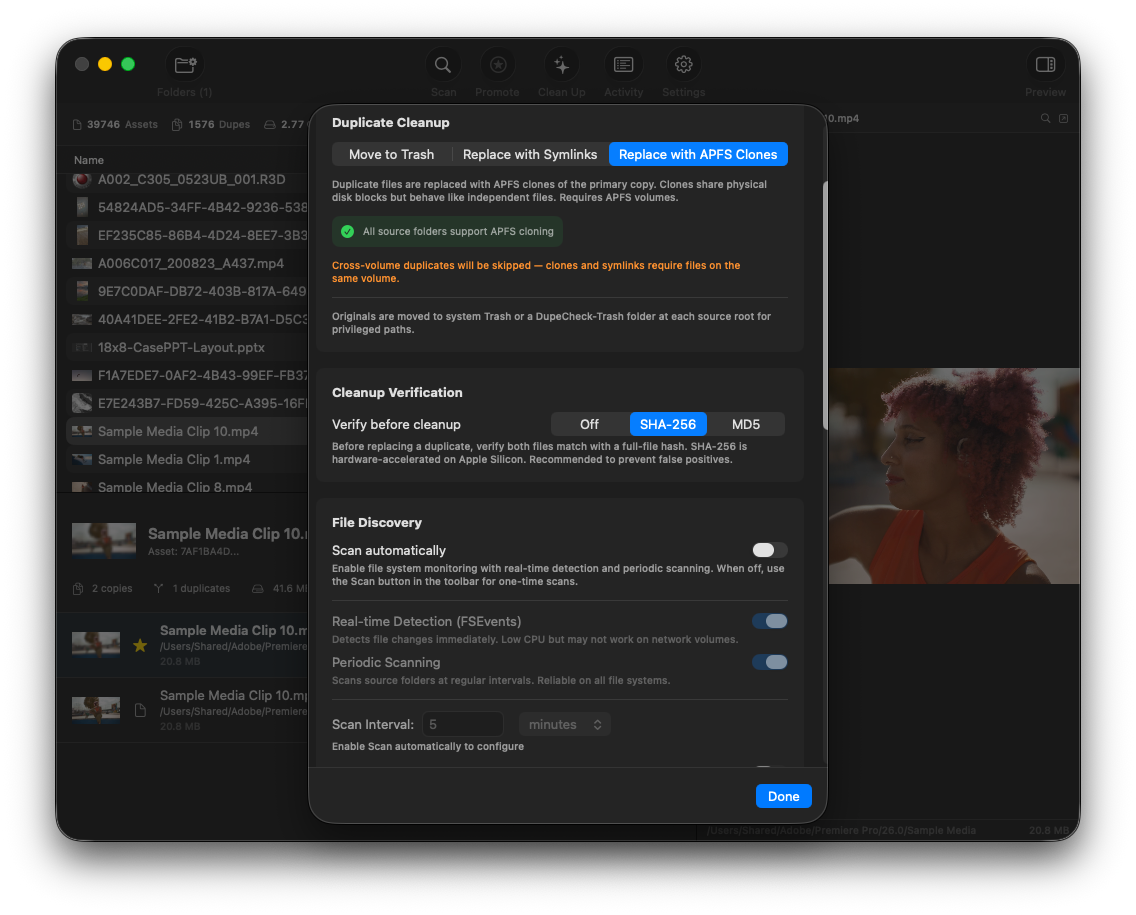
Three cleanup modes: APFS Clones, Symlinks, and Move to Trash.
DupeCheck offers three strategies for handling confirmed duplicates. Choose the mode that best fits your storage and workflow:
The duplicate is replaced with an APFS clone of the primary copy. Clones share physical disk blocks but behave as completely independent files — applications see two separate files, but the underlying storage is shared. If either file is later modified, only the changed blocks are written (copy-on-write).
DupeCheck preserves the duplicate's original metadata (modification date, permissions, extended attributes) through an atomic clone-swap operation. The original file's inode is preserved, so references from other applications remain valid.
The duplicate is replaced with a symbolic link pointing to the primary copy. This saves space without requiring APFS, but symlinks are visible to applications and may not work with all software. DupeCheck uses a safe rename-verify-move pattern to ensure atomic replacement.
Like clone mode, symlinks require both copies to be on the same volume. Cross-volume duplicates are skipped automatically — the Clean Up confirmation tells you how many.
Duplicate files are moved to the system Trash. This is the simplest option —
duplicates are removed but recoverable from Trash if needed. For privileged paths
where the system Trash is unavailable, DupeCheck creates a DupeCheck-Trash
recovery folder at the source root.
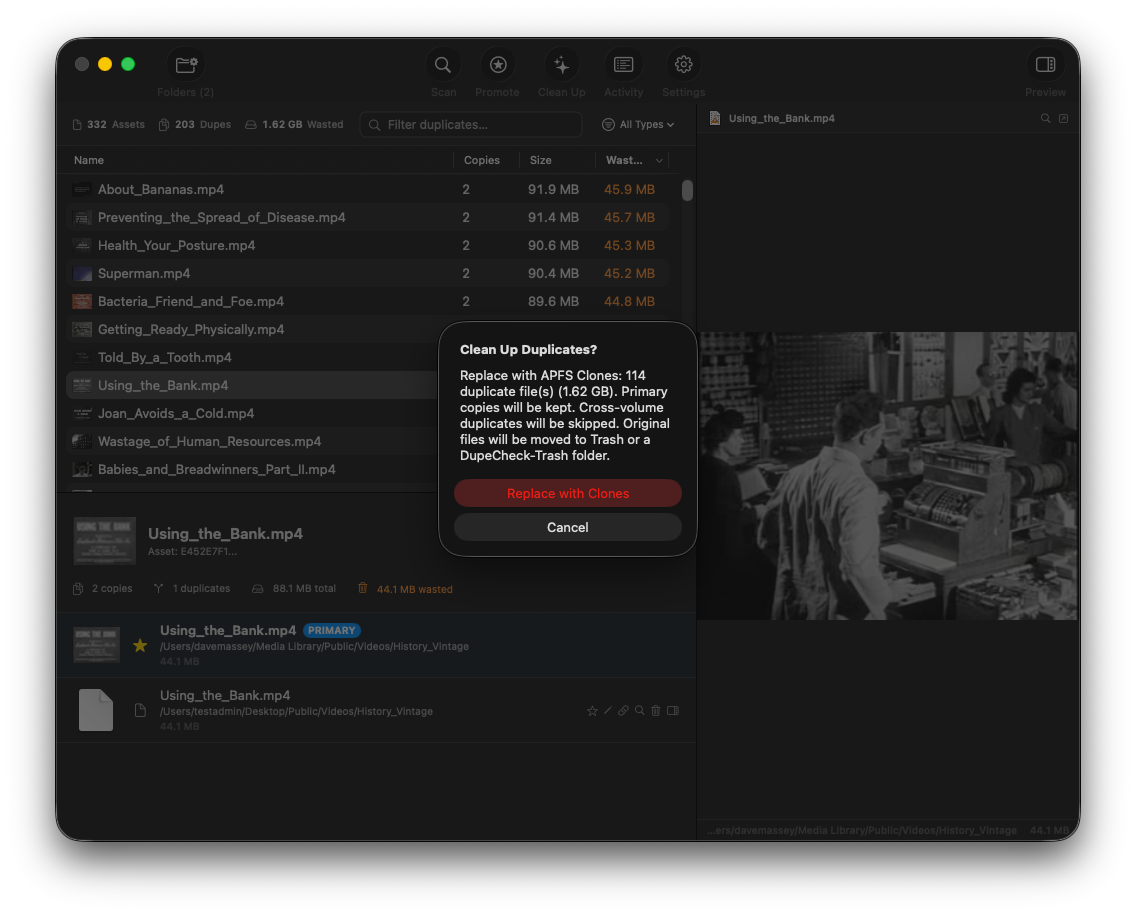
Cleanup confirmation — review mode, file count, and recovery options before any files are modified.
DupeCheck protects certain files from cleanup regardless of mode:
DupeCheck can continuously monitor source folders for new duplicates using the Start Watching / Stop Watching toolbar button. When watching is active, macOS FSEvents detects file changes in near real-time with intelligent debouncing to batch event bursts. Watching is off by default; the watching state persists across app launches.
On a share connected through the NAS helper, a folder that changes is scanned through the helper. Whether changes made from other computers are noticed depends on the file server: a Mac file server reports them, but some NAS servers report only the changes made from this Mac. Click Scan to pick up everything. If the helper isn't connected when a change arrives, the Activity log says which changes weren't scanned; the next scan covers them.
Changes you make from within DupeCheck — cleaning, renaming, or cloning duplicates — update the UI immediately without waiting for a rescan, regardless of whether watching is enabled.
DupeCheck supports full keyboard navigation. Press Tab to switch focus between the duplicate groups table and the file list below it. Use Up/Down arrows to navigate within the focused pane. The active pane is indicated by an accent-colored border.
| ⌘C / ⌥⌘C | Copy Path (⌘C in the duplicate list) |
| ⌘R | Reveal in Finder |
| ⌘E | Rename |
| ⌘P | Promote to Primary |
| ⌘⌫ | Clean Selected Duplicate |
| ⌃⌘S | Show / Hide Sidebar |
| ⌘↑ / ⌘↓ | Previous / Next Group |
| ⌥⌘↑ / ⌥⌘↓ | Previous / Next File |
| Space | Toggle Preview |
| Tab | Switch between Groups and Files |
All shortcuts are also shown in context menus for discoverability. Destructive actions show a confirmation dialog which can be suppressed via Don't Ask Again. Use Reset Dialogs in Advanced settings to re-enable suppressed confirmations.
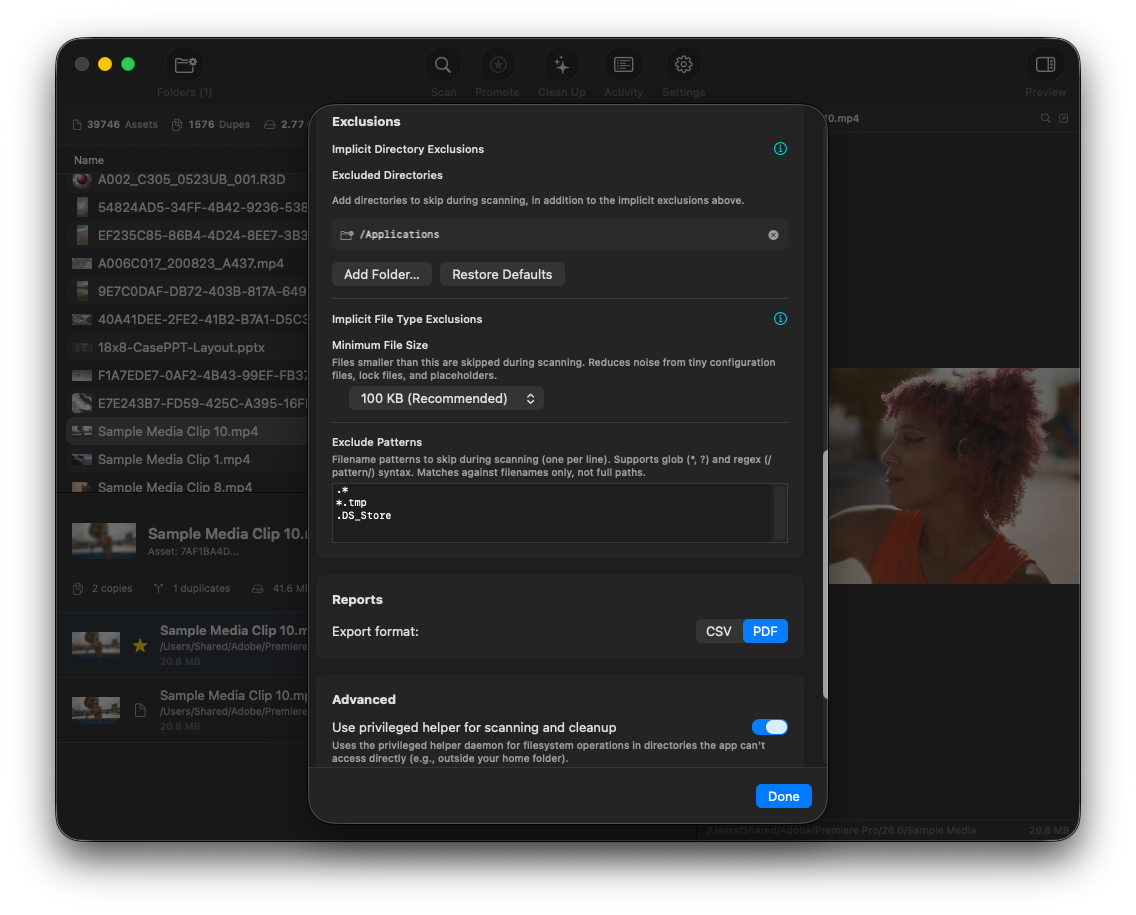
Exclusion settings with implicit system protections, user-configured directories, and pattern-based filtering.
The following directories are always excluded from scanning. These are detected automatically based on filesystem metadata and cannot be disabled:
com.apple.rootless extended attribute
Add directories to the exclusion list in Settings to skip them during scanning.
The /Applications directory is excluded by default.
Define filename-based exclusion patterns using glob syntax (*,
?) or regex (/pattern/). Patterns match against filenames
only, not full paths. One pattern per line. Default patterns:
.* — hidden files (dotfiles)*.tmp — temporary files.DS_Store — Finder metadataFiles below the minimum size threshold are skipped during duplicate detection. The default of 100 KB is recommended — smaller files are rarely meaningful duplicates in media workflows and skipping them significantly reduces scan time. Options range from no minimum to 10 MB.
The type filter and the search box only change what the list shows, to help you find specific media. They never change what a cleanup, a folder action or the Duplicates Report covers. To keep files out of DupeCheck, use the exclusions above.
By default, DupeCheck can only scan and modify files within your home folder. To operate on files outside your home directory — including shared volumes, system-wide locations, and other users' directories — enable the privileged helper in Settings.
The helper status indicator in Settings shows green when the helper is running and ready, or orange when approval is still pending.
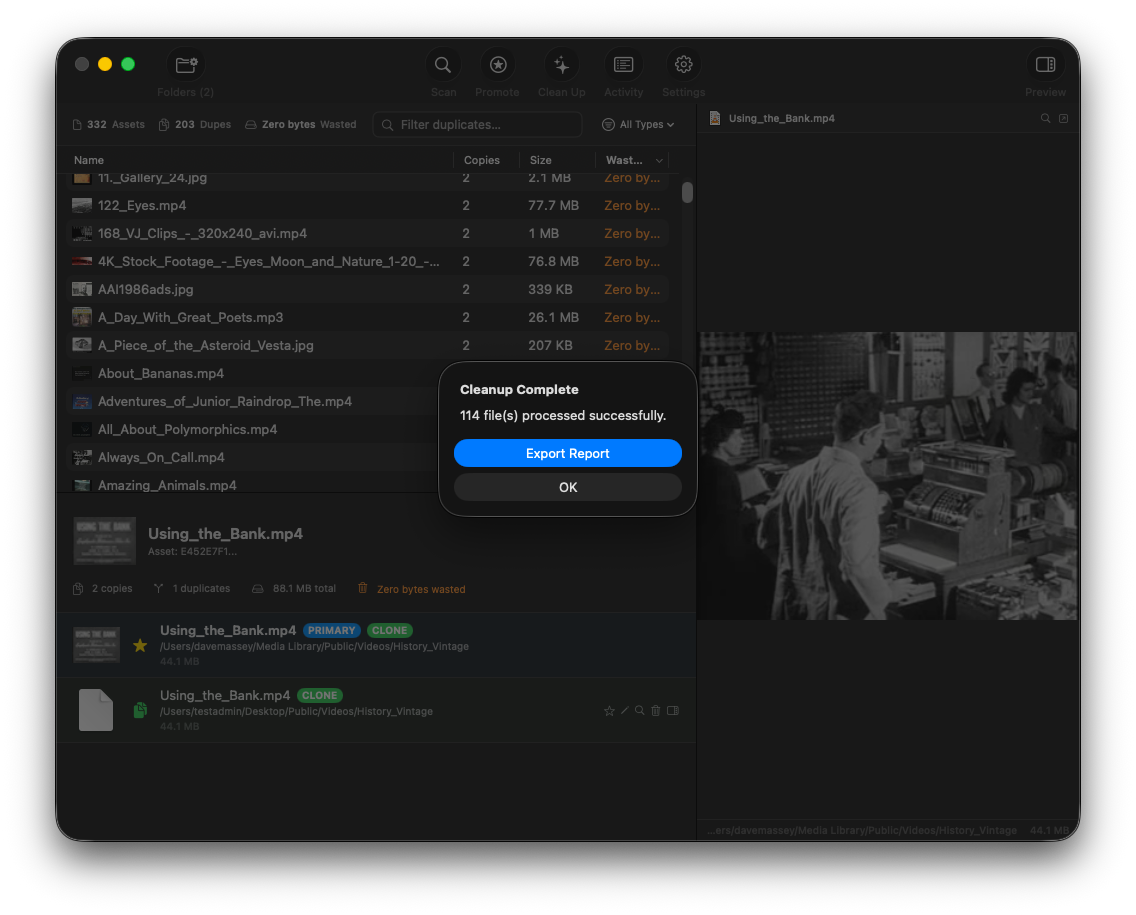
Every cleanup saves a report; Export Report saves another copy where you choose.
Every cleanup — including cleaning a single file or set from the list — saves a CSV report automatically. See them with File → Show Cleanup Reports in Finder. The Cleanup Complete message lists files that weren't cleaned and why, and Export Report saves a copy in the format chosen in Settings. Reports include per-file status, the action taken, recovery paths, and summary statistics.
Before a cleanup, Show Files in the confirmation lists every file it will process with the copy that is kept, and Save List… saves the list as a CSV file.
File → Export Duplicates Report… saves every file in every duplicate set, grouped by set, as a CSV file. The type filter, search and sidebar folder don't limit the report.
Machine-readable format with columns for status, action, file path, primary path, error message, file size, recovery path, and timestamp. Includes a summary footer with counts for succeeded, failed, and skipped files.
Printable report with title page, summary statistics, and per-file detail pages with color-coded status (green for success, orange for skipped, red for failed).
The report captures every file processed during cleanup, including:
APFS clone and symlink modes only work when both copies are on the same volume. Cross-volume duplicates are automatically skipped in these modes. If most of your duplicates span volumes, use Move to Trash mode instead.
In Trash mode, cleaned files are in your system Trash (recoverable
via Finder → Trash). For privileged paths where system Trash is unavailable,
look for a DupeCheck-Trash folder at the root of each source folder.
In Clone mode, both copies still exist — they just share physical storage blocks. The file at each path is fully functional and independently modifiable.
If cleanup reports files as busy, DupeCheck checks whether the busy flag has been idle for more than 24 hours. Stale busy flags (common with SMB oplocks that weren't properly released) are automatically cleared before retrying the operation.
If the file index becomes corrupted or you want to start fresh, use Reset Database in Settings → Advanced. This stops any running scan, clears all scanned file records and requires a full rescan. Your source folder configuration and preferences are preserved.
Enable Debug Logging in Settings → General for verbose
diagnostic output. Logs are written to ~/Library/Logs/daveco/ and
include scan progress, hash computations, cleanup operations, and error details.